Hardware utilityUndetected

Perm Spoofer

A fresh start for your setup. Setup guide for Perm Spoofer, the Zalo hardware utility.

Last updated October 21, 2026

View in store
Perm Spoofer artwork

Installation

Setup progress0%
01

Reinstalling Windows

STEP 1 — Prepare USB

  1. Download Windows 10: https://www.microsoft.com/en-gb/software-download/windows10
  2. Open the downloaded file and press Create installation media (USB flash drive, DVD or ISO file).
  3. Click Next, then Next again.
  4. Press ISO file, then Next, and choose a place for the ISO. (DO NOT PUT IT ON YOUR USB YET.)
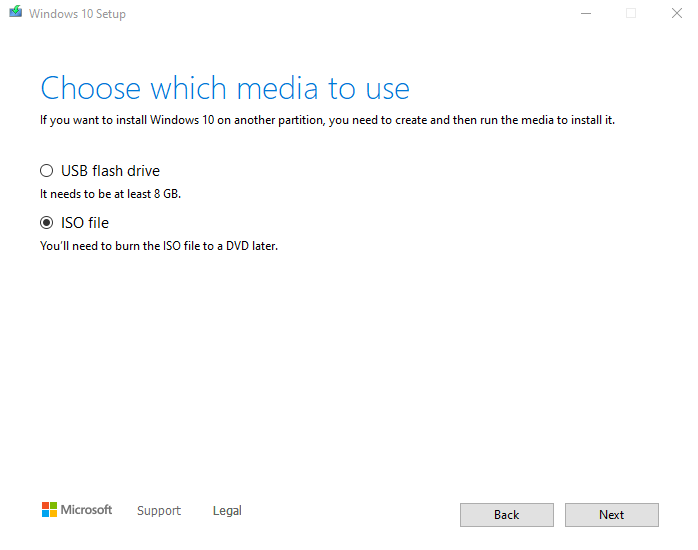
Windows 10 setup with ISO file selected

STEP 2 — Burn ISO to USB with Rufus

  1. Download Rufus: https://rufus.ie/
  2. Open the downloaded file and make sure the Device option at the top is set to your USB.
  3. Click SELECT. It opens your files. Choose the ISO downloaded earlier.
  4. Click START and let it finish. This can take a little while.

STEP 3 — Download Drivers (Wi-Fi only)

  1. Go to your motherboard manufacturer's website and download the Wi-Fi drivers.

STEP 4 — Boot to USB

  1. Restart your PC into the BIOS. If you're unsure how, search for it.
  2. Open the Boot section and set Boot Option #1 to your USB.
  3. Save changes. The PC restarts on its own.

STEP 5 — Install Windows

  1. Click Next until you reach the page in the screenshot below. Press Custom install.
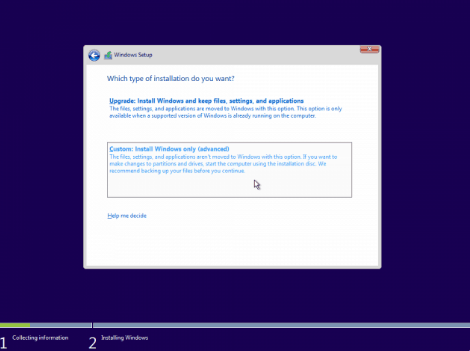
Windows setup with Custom install selected

STEP 6 — Disk Cleanup

  1. Press Shift + F10 to open Command Prompt.
  2. Type diskpart and press Enter.
  3. Type list disk and press Enter.
  4. For every disk number except your USB, run select disk # followed by clean.
  5. Close Command Prompt and click Refresh.
  6. Select your main disk drive, click Next, and the installation starts.
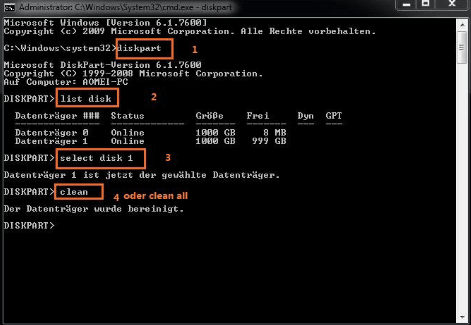
DiskPart listing disks, with select disk and clean highlighted

02

Bios Flash (CoD)

THIS IS ONLY NEEDED FOR CALL OF DUTY

STEP 1 — Identify Your Motherboard

  1. Press Windows + R.
  2. Type msinfo32 and press Enter.
  3. Find your motherboard under BaseBoard Manufacturer and BaseBoard Product.

STEP 2 — Download a Different BIOS Version

  1. Visit your motherboard manufacturer's official website.
  2. Search for your exact motherboard model.
  3. Open the BIOS / Downloads section.
  4. Download a different BIOS version, preferably one version older than your current version.

STEP 3 — Prepare Your USB

  1. Insert a USB drive.
  2. Format it to FAT32.
  3. Extract the downloaded BIOS file if necessary.
  4. Move the BIOS file onto the USB drive.

STEP 4 — Enter the BIOS

  1. Restart your PC.
  2. Repeatedly press DEL or F2 during startup.
  3. Open your motherboard's BIOS update tool, such as M-Flash, EZ Flash or Q-Flash.

STEP 5 — Flash the BIOS

  1. Select the BIOS file from your USB drive.
  2. Confirm the update.
  3. Wait for the process to finish. Do not turn off your PC or remove the USB.
  4. Once completed, repeat the process TWO TIMES in total, using only BIOS versions confirmed to be compatible with your motherboard.
03

BIOS Settings

INTEL CPU

Pick your motherboard brand below and apply each setting in your BIOS.

ASUS

  1. TPM — Advanced › Trusted Computing: Security Device Support set to Enable.
  2. Armoury Crate — Tool › ASUS Armoury Crate: Download & Install ARMOURY CRATE app set to Disabled.
  3. Fast Boot — Boot › Boot Configuration: Fast Boot set to Disabled.
  4. Secure Boot — Boot › Secure Boot: OS Type set to Windows UEFI.

MSI

  1. TPM — Settings › Security › Trusted Computing: TPM Device Selection set to Auto or PTT (firmware TPM). Also: Security Device Support set to Enabled.
  2. MSI Driver Utility Installer — Settings › Advanced: MSI Driver Utility Installer set to Disabled.
  3. Fast Boot — Settings › Boot: Fast Boot set to Disabled.
  4. Secure Boot — Settings › Security › Secure Boot: Secure Boot set to Enabled.

GIGABYTE

  1. TPM — Settings › Miscellaneous: Intel Platform Trust Technology (PTT) set to Enabled. Also: Trusted Computing Security Device Support set to Enabled.
  2. Gigabyte Utilities Downloader — Settings › IO Ports › Gigabyte Utilities Downloader Configuration: Download & Install app set to Disabled.
  3. Fast Boot — Boot › Fast Boot: Fast Boot set to Disabled.
  4. Secure Boot — Boot › Secure Boot: Secure Boot Enable set to Enabled.

OTHER

  1. Utility Installer — Disable any Auto-Install or Driver Downloader features (set to Disabled).
  2. Fast Boot — Fast Boot set to Disabled.
  3. TPM 2.0 — TPM 2.0 set to Enabled.

Save & Exit BIOS: press F10 and confirm Save and Exit

AMD CPU

Same idea for AMD boards. Pick your brand and apply.

ASUS

  1. AMD NX Mode — Advanced › CPU Configuration: NX Mode set to Enabled.
  2. TPM — Advanced › Trusted Computing: Security Device Support set to Enabled.
  3. Armoury Crate — Tool › ASUS Armoury Crate: Download & Install ARMOURY CRATE app set to Disabled.
  4. Fast Boot — Boot › Boot Configuration: Fast Boot set to Disabled.
  5. Secure Boot — Boot › Secure Boot: OS Type set to Windows UEFI.

MSI

  1. NX Mode — OC › Advanced CPU Configuration: NX Mode set to Enabled.
  2. TPM — Settings › Security › Trusted Computing: AMD fTPM Switch set to Enabled.
  3. MSI Driver Utility Installer — Settings › Advanced: MSI Driver Utility Installer set to Disabled.
  4. Fast Boot — Settings › Boot: Fast Boot set to Disabled.
  5. Secure Boot — Settings › Security › Secure Boot: Secure Boot set to Enabled.

GIGABYTE

  1. AMD NX Mode — Tweaker › CPU Configuration: NX Mode set to Enabled.
  2. TPM — Settings › Miscellaneous: Trusted Platform Module set to Enabled. Also: Trusted Computing Security Device Support set to Enabled.
  3. Gigabyte Utilities Downloader — Settings › IO Ports › Gigabyte Utilities Downloader Configuration: Gigabyte Utilities Downloader set to Disabled.
  4. Fast Boot — Boot › Fast Boot: Fast Boot set to Disabled.
  5. Secure Boot — Boot › Secure Boot: Secure Boot Enable set to Enabled.

OTHER

  1. NX Mode / No-Execute — NX Mode set to Enabled.
  2. Utility Installer — Disable any built-in driver downloaders (set to Disabled).
  3. Fast Boot — Fast Boot set to Disabled.
  4. fTPM — fTPM set to Enabled.

Save your changes and exit BIOS ( F10 "Save and Exit").

04

Pre Setup (BEFORE SPOOFING)

UNPLUG YOUR USB

✅UNPLUG YOUR USB!

Please unplug ALL USB devices from your PC

✅Disable Startup & Background Applications:

  1. Disable all startup apps from:
  2. Background Apps
  3. Task Manager → Startup
  4. Do not restart yet.

✅Network Adapter Configuration:

  • Press Windows + R
  • Type ncpa.cpl and press Enter
  • Right-click your Ethernet or Wi-Fi adapter
  • Click Properties
  • Uncheck everything except:
  • ✔ QoS Packet Scheduler
  • ✔ Internet Protocol Version 4 (TCP/IPv4)
  • Click OK

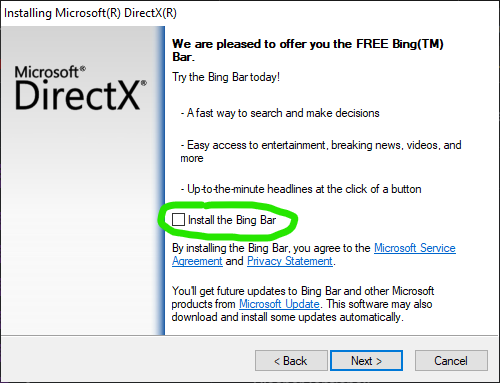
✅Install DirectX Runtimes:

Guide screenshot

✅Install Visual C++ Redistributable Runtimes:

  • Download Visual C++ Redistributable Runtimes All-in-One Here
  • Unzip the downloaded file.
  • Right-click install_all.bat and select Run as administrator.
  • After that go to perm spoofer folder and Install Drivers from Req (Requirements) folder (IF THERE WILL BE ANY )
  • Restart your PC once installation is complete.

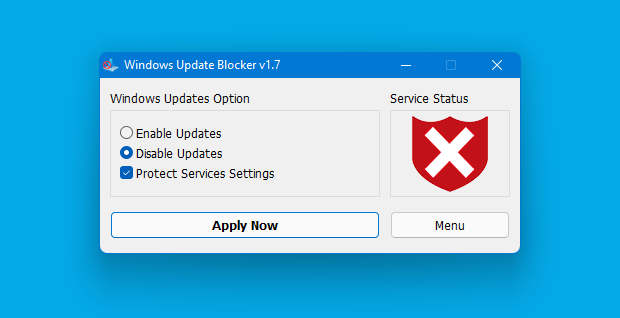
✅Disable Windows Updates:

Guide screenshot

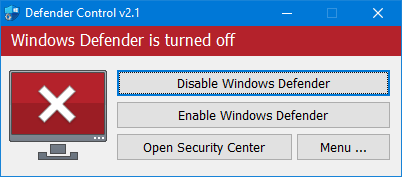
✅Disable Windows Defender:

  • Download dControl Here (Password: sordum)
  • Unzip the file.
  • Run dControl.exe.
  • Disable Windows Defender completely.

Guide screenshot

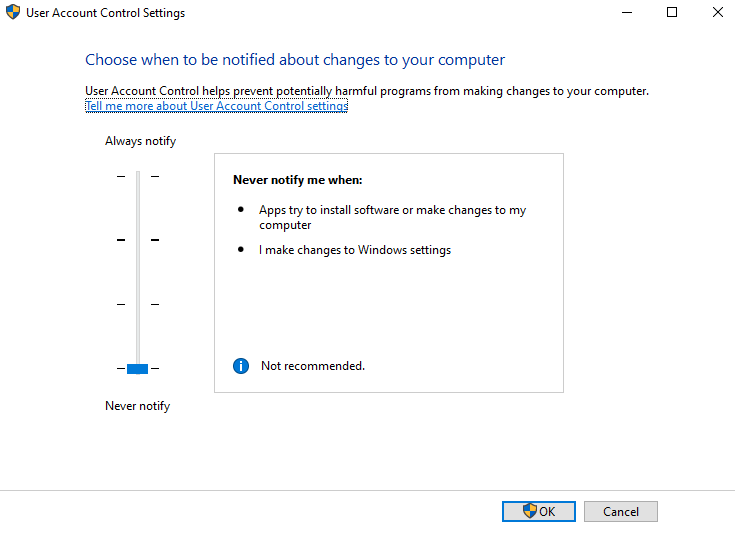
✅Disable UAC (User Account Control):

  • Open Start, search UAC, and open Change User Account Control settings.
  • Drag the slider down to Never notify.
  • Click OK and confirm if prompted.

Guide screenshot

05

Download Spoofer

Download The Spoofer loader here: https://gofile.io/d/kzpcI8d5

WARNING

If you have not done ALL of the steps before this, you MUST do them first.

06

PERMENANT SPOOFING

HOW TO SPOOF

Activate Key & Download Loader

  1. Activate your License Key - Go to https://activatekey.xyz/login.php > login > Enter your license key and click activate.
  2. Download Spoofer - https://gofile.io/d/kzpcI8d5

Spoof Setup

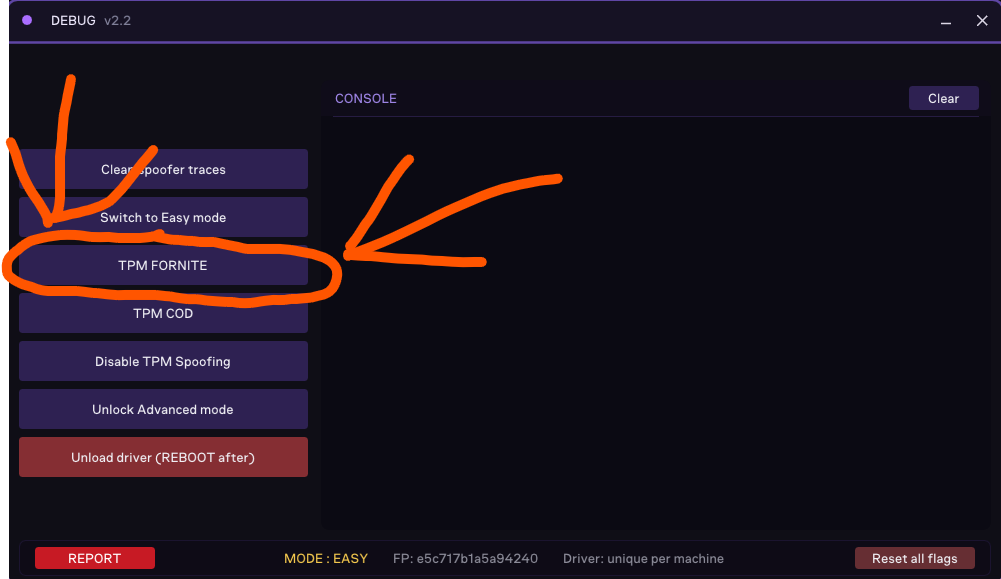
  1. Open the spoofer file, then open the debug folder. and open debug.exe
  2. For EAC games choose ''TPM FORTNITE'' (Fortnite, Apex, Rust, ect.)

Debug TPM Fortnite

Spoofing Configuration

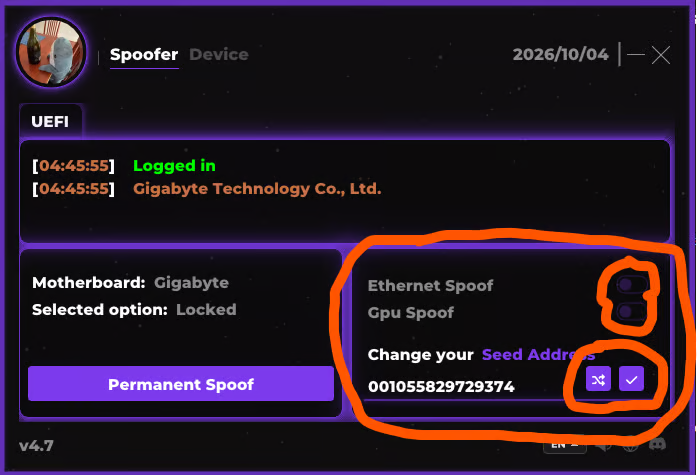
2. Now open the Loader folder, then open loader.exe

3. Enter your key and press login.

Change Seed - Hit the 2 buttons under the Change Seed Address (Mandatory)

GPU SPOOF - If the game your spoofing for bans GPU, enable GPU spoof.

ETHERNET SPOOF - Recommended to disable this option, but another method will spoof it.

Spoofer settings

Spoof HWID

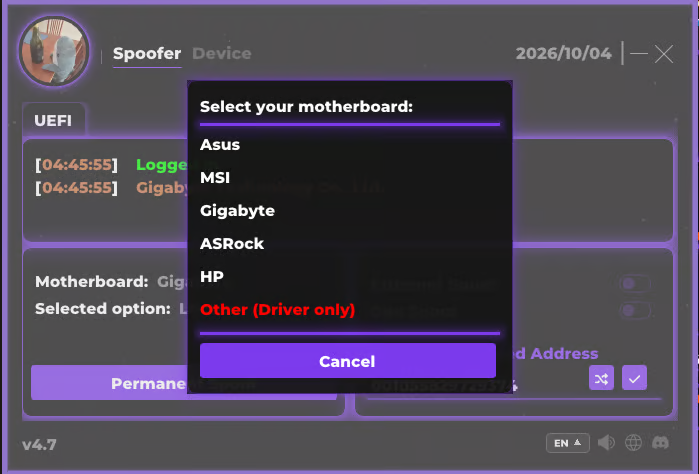
  1. Hit the ''Permanent Spoof'' button, and choose your motherboard. (IF YOU DONT SEE YOUR MOTHERBOARD, CLICK OTHER)
  2. Wait till you see the green ''Spoofed'' Message
  3. Restart your PC

Motherboard select

Confirm Serials Changed

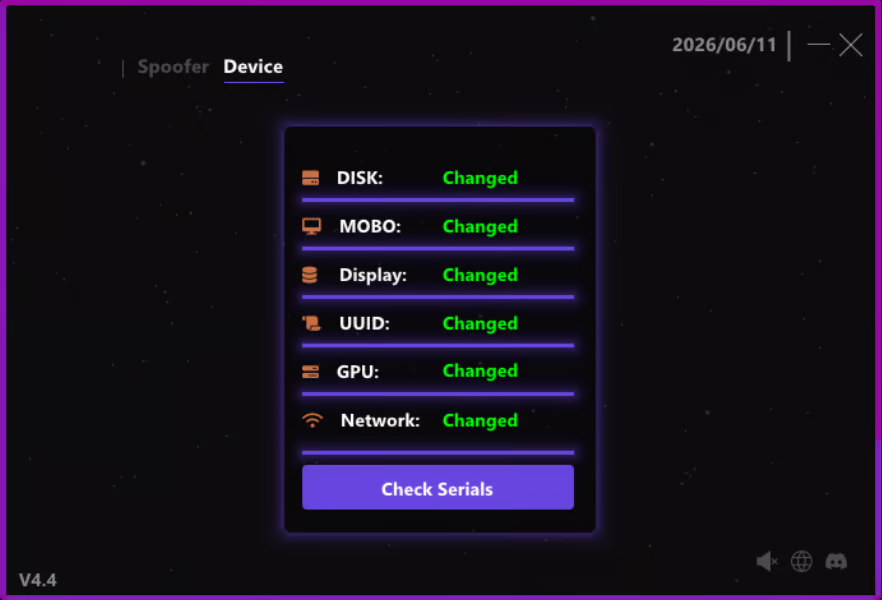
  1. Once your PC is restarted, open the loader again and go to the ''Device'' tab
  2. Ensure everything says Changed like in the picture (IF GPU DOESNT SAY CHANGED, ITS OKAY ASLONG AS YOUR GAME DOESNT NEED GPU SPOOFING.)

Serials changed

07

AFTER SPOOFING

AFTER SPOOFING (IMPORTANT)

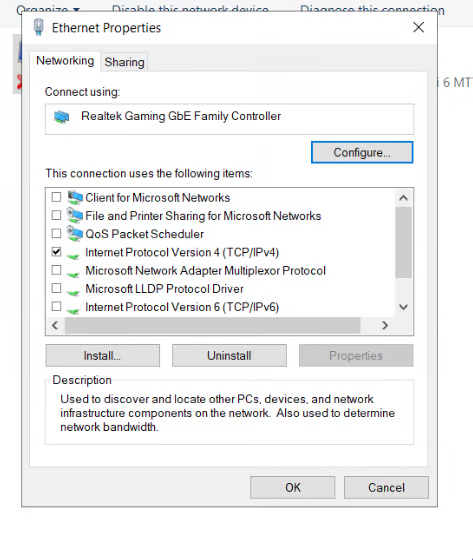
  1. Press WIN + R , type ncpa.cpl and click OK
  2. Right click on the connection that you are using, and click on Properties.
  3. Change your settings so they look exactly like this

Ethernet properties

Device Cleanup

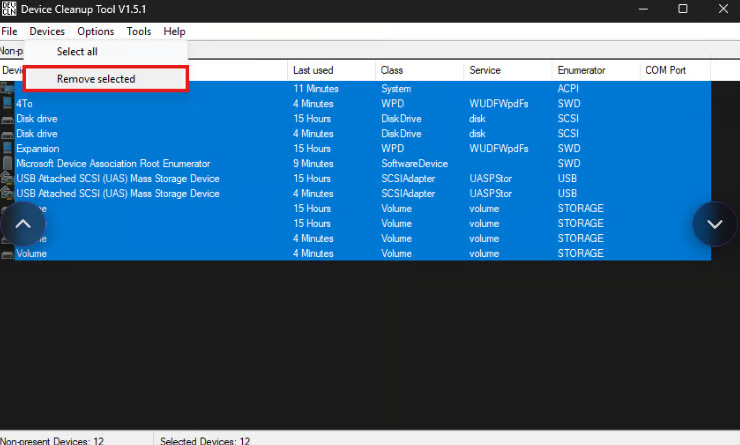
  1. Download Device Cleanup - https://gofile.io/d/7eoIkgXt
  2. Run DeviceCleanup.exe as Administrator
  3. Select all the listed devices (CTRL + A)
  4. Right click the selections, and click Remove Devices.

Device Cleanup

4. Confirm the removal. Once its done, RESTART YOUR PC.

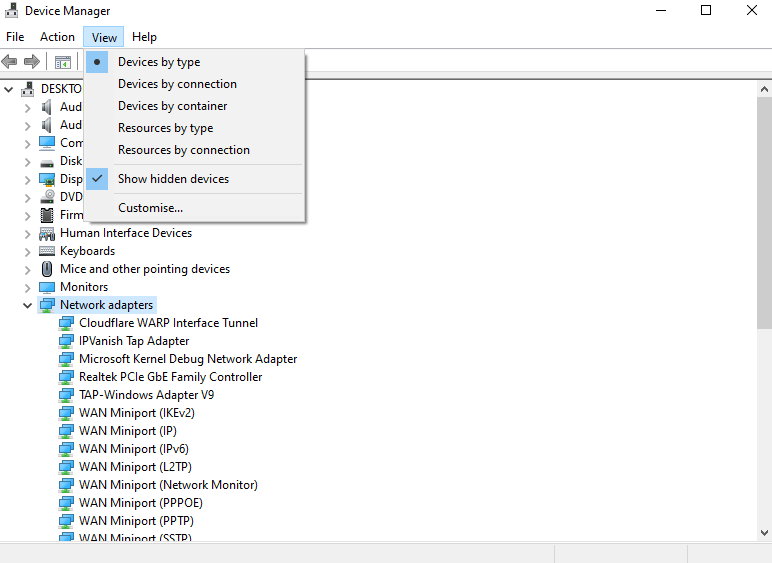
NETWORK SETUP

  1. Open Device Manager > at the top press View and enable Show Hidden Devices

Show hidden devices

CLEAN SPOOFER TRACES (VERY IMPORTANT)

  1. Open the spoofer file you downloaded earlier, open the Debug file, and run Debug.exe
  2. Click ''Clean Spoofer Traces'' then close the program.
  3. Delete the spoofer loader file.

3RD PARTY ACCOUNTS (DO NOT)

Do NOT login to any third party softwares that require a login. These apps tie your hardware to your old identity through their cloud accounts, and will get you DELAY BANNED.

DONT LOGIN TO:

Logitech G HUB

GeForce Experience

Razer Synapse

Medal

Microsoft Account

Onedrive

Steelseries GG

VPN USAGE (IMPORTANT)

EAC GAMES: For EAC games, you MUST use a VPN for ATLEAST 14 days.

You MUST use: Windscribe VPN or IPVanish VPN. (NO OTHERS WILL WORK. DO NOT USE A FREE ONE, DO NOT USE A DIFFERENT ONE.)

08

Staying Safe

VALORANTFORTNITERUSTAPEXDAYZCOD

Legit players

Never go on a previously banned account

Cheater

Recommended to get high quality accounts, never go on a previously banned account

NEVER: login to a previously banned / VPN kicked account.

NEVER: skip reinstalling before spoofing. It is required

MUST: use a VPN for 14 days

VPNS THAT CAN BE USED: Windscribe stealth mode or IPVanish

Official servers

It is required to use a VPN for at least 14 days.

Recommendations: Windscribe, IVPN, AirVPN, ...

Community servers

If you got banned previously on a modified/community server the spoof wont unban you on new accounts. Server owner ban people based on Steam data & IP-Address. A residential VPN is required if you cant change your public IP.

Recommendations: MysteriumVPN, ResiVPN, ...

If you can get an Aged account. This will increase the success rate by at least 15% which is worth it of course. Also good against Shadowbans.

09

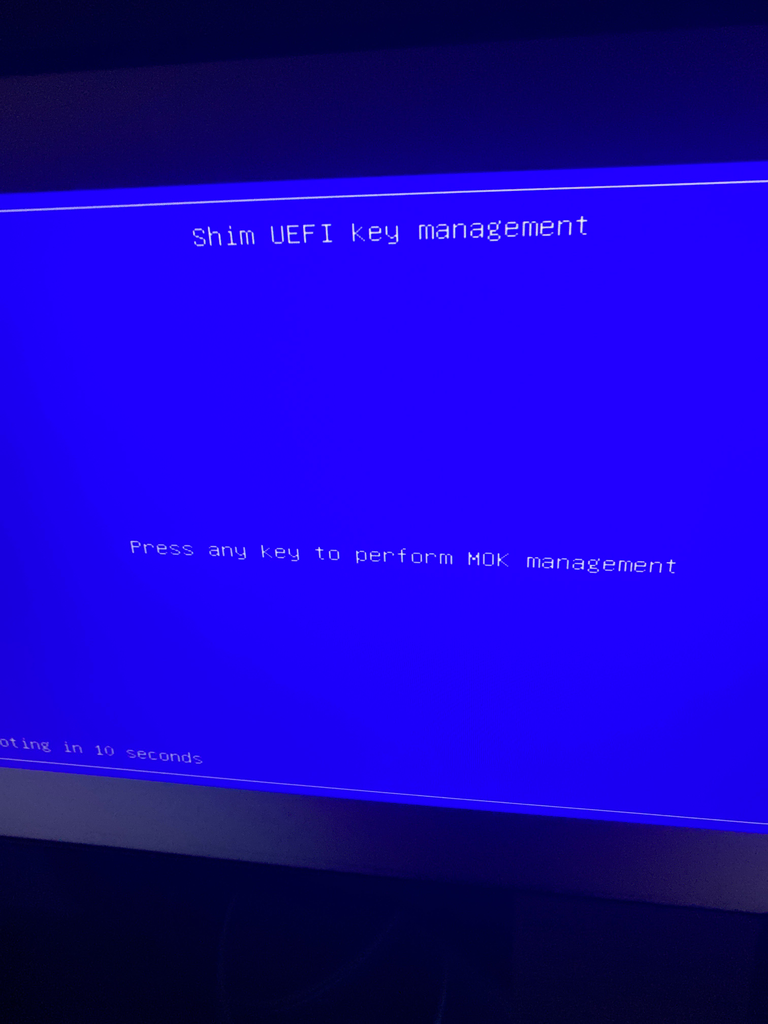
Secure Boot Violation (EFI)

  1. Press OK

Guide screenshot

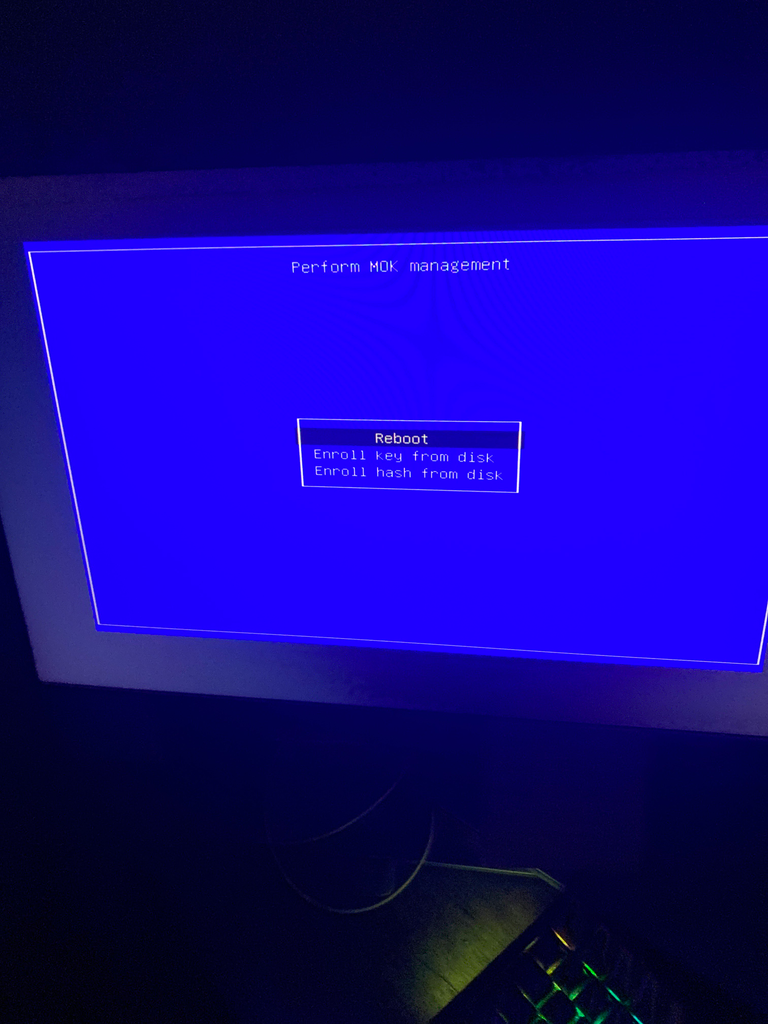
  1. Press Any Key
  2. Enroll key from disk

Guide screenshot

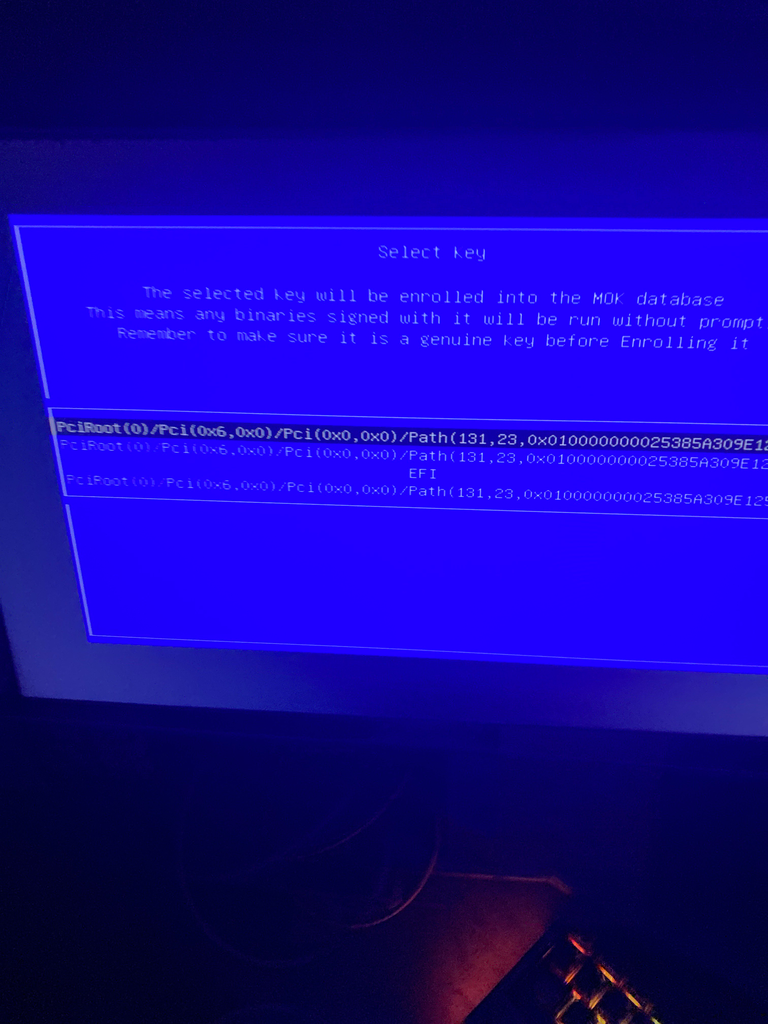
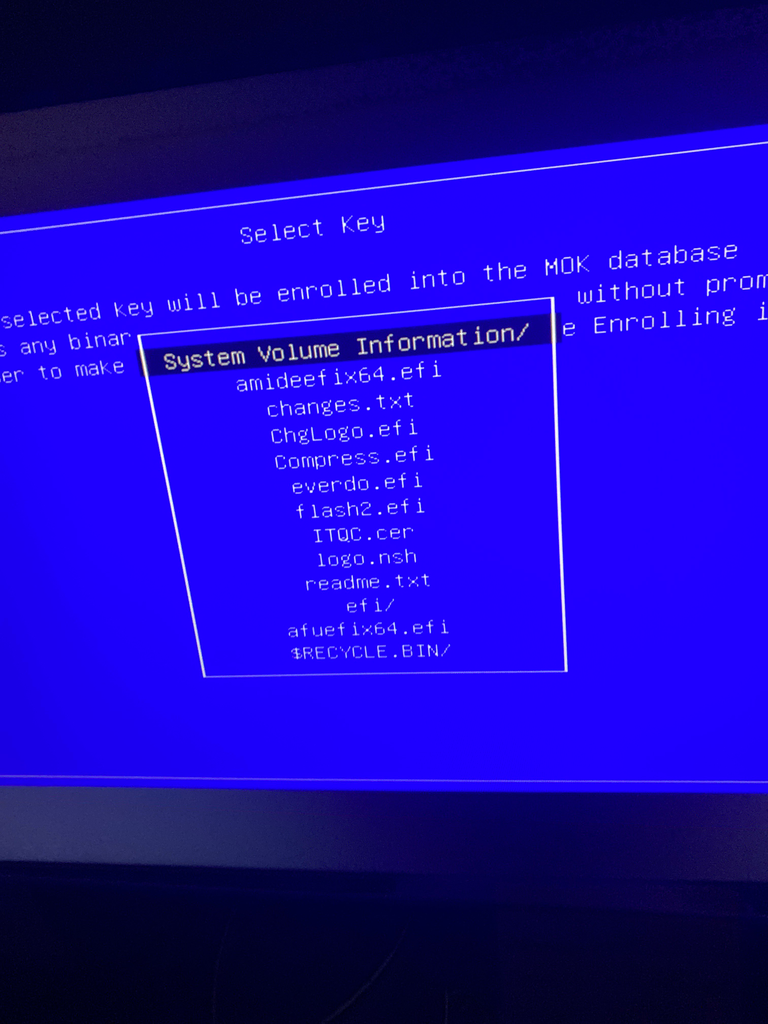
  1. EFI (The Partition Name)

Guide screenshot

  1. Press LWAY.cer

Guide screenshot

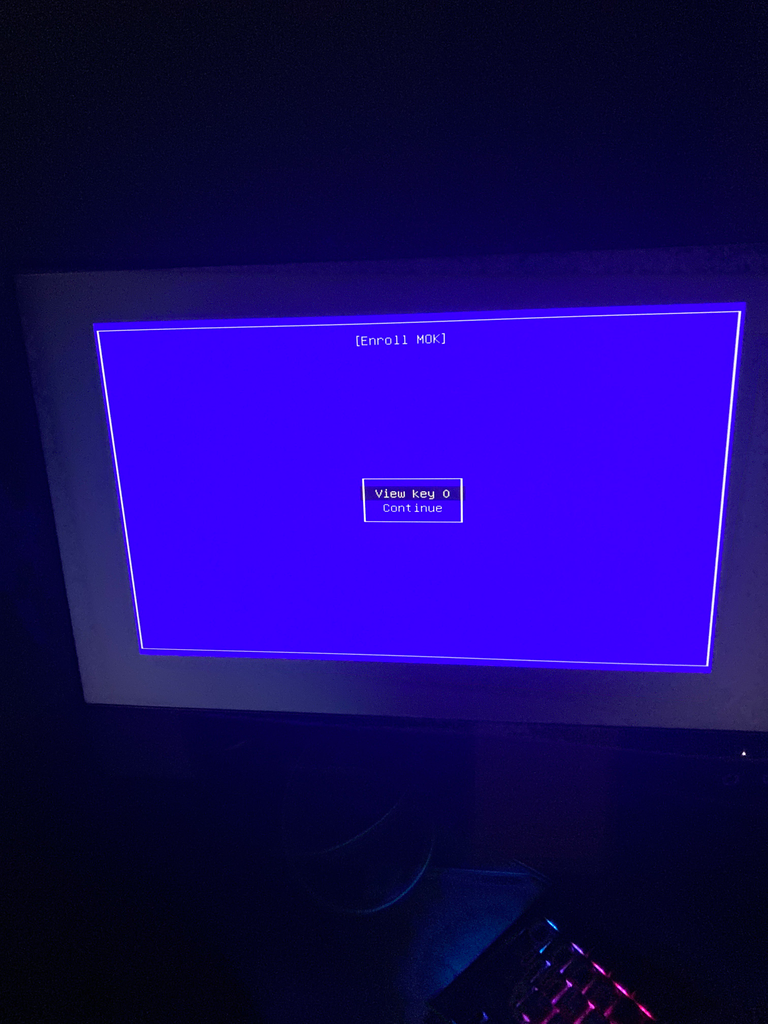
  1. Press Continue

Guide screenshot

  1. Now Finally Reboot
  2. Then you should see this screen:

Guide screenshot

  1. Now Check Serials and Confirm they've changed
11

MSI Raiding

How to setup RAID array for Intel chipset

Upon powering on the PC, please start hitting the [Del] key continuously to enter the BIOS menu,

Select [SETTINGS] → select [Advanced] → Set [SATA mode] as [RAID/Optane Mode].

Press [F10] → Select [Yes] to save and exit, the PC will restart.

Upon powering on the PC, please start hitting the [Del] key continuously to enter the BIOS menu,

Select [SETTINGS] → [Advanced] → select [Intel(R) Rapid Storage Technology].

Select [Create RAID Volume] (Note: All of the data will be wiped, please backup your data.)

Select [RAID Level]: RAID0 or Volume if available.

Select all available disks.

Click [create Volume]

You can see the RAID Volumes has been created at this moment, take a picture to show later in ticket.

How to setup RAID array for AMD chipset

Upon powering on the PC, please start hitting the [Del] key continuously to enter the BIOS menu,

Select [Settings] → Click [Advanced] → Set up [SATA mode] as [RAID mode]

Press [F10] → Click [Yes] to save and exit, the PC will restart.

Upon powering on the PC, please start hitting the [Del] key continuously to enter the BIOS menu,

Select [SETTINGS] → [Advanced] → select [RAIDXpert2 Configuration Utility].

Select [Array Management]

If the [Create Array] is grey out, it means the current disk is set in RAID array already. Please click [Delete Array] to re-create RAID.

Select [Check All] → Click [Delete Array(s)]

Set [Confirm] as [Enable] → and click [YES]

Note: All of the data will be wiped, please backup your data.

The existing Arrays have been deleted.

Click [Create Array]

Click [Select RAID Level]: RAID0 or Volume if available.

Click [Select Physical Disks]

Select the RAID disks. For example: setup [Physical Disk 0:1:3]& [Physical Disk0:1:7] as [Enable] → Click [Apply Changes]

Select [Create Array]

The RAID volume has created.

12

Gigabyte Raiding

Gigabyte Intel RAID Tutorial

Step 0:

Turn on your computer and press Delete to enter BIOS Setup during the POST (Power-On Self-Test). Go to

Peripherals\SATA And RST Configuration, make sure SATA Controller(s) is enabled. To create RAID, set

SATA Mode Selection to Intel RST Premium With Intel Optane System Acceleration.

Step 1:

In BIOS Setup, go to BIOS tab and set CSM Support to Disabled. Save the changes and exit BIOS Setup.

Step 2:

After the system reboot, enter BIOS Setup again. Then enter the Peripherals\Intel(R) Rapid Storage Technology

sub-menu.

Step 3:

On the Intel(R) Rapid Storage Technology menu, press Enter on Create RAID Volume to enter the Create

RAID Volume screen. Enter a random volume name with 1~16 letters (letters cannot be special characters) under the

Name item and press Enter. Then, select RAID0 or Volume if available.

Next, use the down arrow key to move to Select Disks.

Step 4:

Under Select Disks item, select all hard drives to be included in the RAID array. Press the Enter key on

the hard drives to be selected (selected hard drives are marked with "X").

Step 5:

Move to Create Volume and press Enter to begin.

After completing, you'll be brought back to the Intel(R) Rapid Storage Technology screen. Under RAID Volumes

you can see the new RAID volume.

Raid volume created.

Gigabyte AMD RAID Tutorial

Step 0:

Turn on your computer and press Delete to enter BIOS Setup during the POST (Power-On Self-Test). Under

Settings\IO Ports, set SATA Configuration\SATA Mode to RAID. Then save the settings and

restart your computer. (If you want to use NVMe PCIe SSDs to configure RAID, make sure to set NVMe RAID

mode to Enabled.)

Step 1:

In BIOS Setup, go to BIOS tab and set CSM Support to Disabled. Save the changes and exit BIOS Setup.

After the system reboot, enter BIOS Setup again. Then enter the Settings\RAIDXpert2 Configuration Utility

sub-menu.

Step 3:

On the RAIDXpert2 Configuration Utility screen, press Enter on Array Management to enter the Create

Array screen. If you cannot create an array, please press Enter on Delete Array first, then create your arrays.

Then, select RAID0 or Volume, we recommend Volume if available. Next, press Enter on Select Physical Disks to enter the Select Physical Disks screen.

Step 4:

On the Select Physical Disks screen, select the hard drives to be included in the RAID array and set them to

Enabled. Next, use the down arrow key to move to Apply Changes and press Enter.Then return

to the previous screen and leave the Array Size, Array Size Unit, Read Cache Policy and Write Cache Policy as is.

Step 5:

After setting the capacity, move to Create Array and press Enter to begin.

Final verification

Related resources